Your account
What it does
Your account settings are yours alone — your name and photo, your password, and what BotDoPay emails you about. Nothing here changes anything for your colleagues.
How to use it
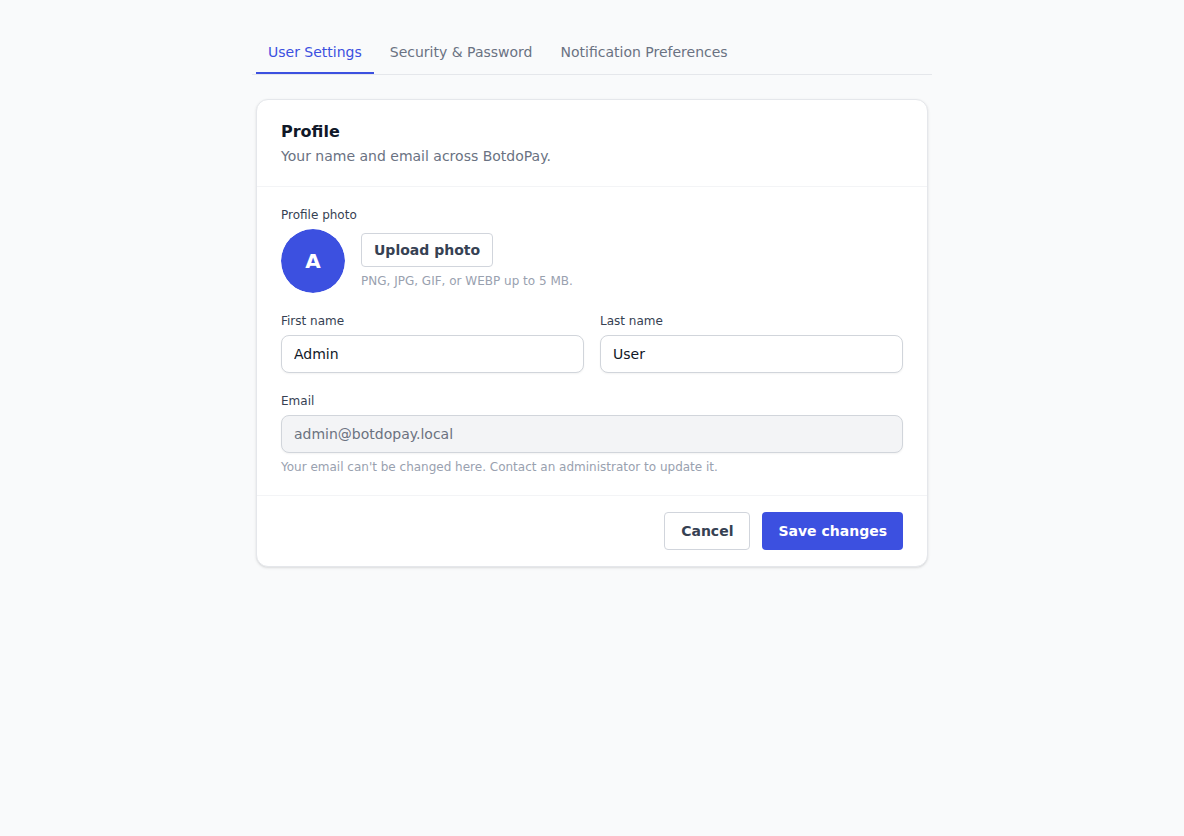
Update your profile
- Click your avatar in the top-right corner, then User Settings.
- Change your First name or Last name.
- Click Save changes. You'll see Your profile has been updated.
Add or change your photo
- On User Settings, choose an image for your profile photo.
- Click Save changes. Your photo replaces the initial in the top corner.
To take it off, tick Remove current photo and click Save changes.
Change your password
- Click your avatar, then Security & Password.
- Fill in Current password, then New password, then Confirm new password.
- Click Update password.
If you can't remember your current password, sign out and use Forgot your password? on the sign-in page instead — see Getting started.
Choose what you get emailed about
- Click your avatar, then Notification Preferences.
- Tick or untick each one:
- Purchase order approvals — when a purchase order needs your approval
- Invoice updates — when an invoice is matched, approved, or paid
- Vendor updates — when a vendor is approved or its status changes
- Product announcements — occasional news about new BotDoPay features
- Click Save preferences.
Turning emails off doesn't turn off the notification bell in the app — you'll still see everything there. See Finding your way around.
Sign out
Click your avatar, then Logout. There's also a sign-out button at the bottom of the sidebar.
Troubleshooting & Help
- Your password won't update. Check Current password is right, and that the two new password boxes match exactly.
- Your photo didn't appear. Try a smaller image file, and look for the confirmation message after saving.
- You're still getting emails you turned off. Preferences apply to new notifications, so one already on its way may still arrive. If it keeps happening, check you clicked Save preferences.
- You'd rather get fewer emails but keep the alerts. Untick everything on Notification Preferences. The bell in the app keeps working.