Working with lists
What it does
Almost every screen in BotDoPay — bills, payments, vendors, purchase orders and the rest — is a list. They all work the same way, so learning the controls once covers all of them. This guide shows you how to search, sort, filter, and change which columns you see.
How to use it
Search
Type in the search box above the list. Results narrow as you type — you don't need to press Enter. Each list tells you what it searches; a bill list, for example, looks at the bill number, the vendor's reference, and the vendor's name.
Clear the box to see everything again.
Sort
Click a column heading to sort by it. Click the same heading again to flip between smallest-first and largest-first.
To sort by two things at once — say, by total, and then by vendor name within each total — hold Shift and click the second heading. Small numbers appear on the headings to show the order they're applied in.
Filter
- Click the funnel icon on a column heading.
- Fill in the box that opens. What you get depends on the column:
- Status and other set choices — tick the ones you want. Each one shows how many rows match.
- Amounts — pick something like Greater than and type a number.
- Dates — pick a start and end date.
- Text — pick something like Is exactly and type the text.
- Vendors and similar — tick the ones you want from the list.
- Click Apply.
Every filter you apply becomes a small chip above the list — for example Status: Approved. Click the × on a chip to drop that one filter, or click Clear all to drop them all.
Choose your columns
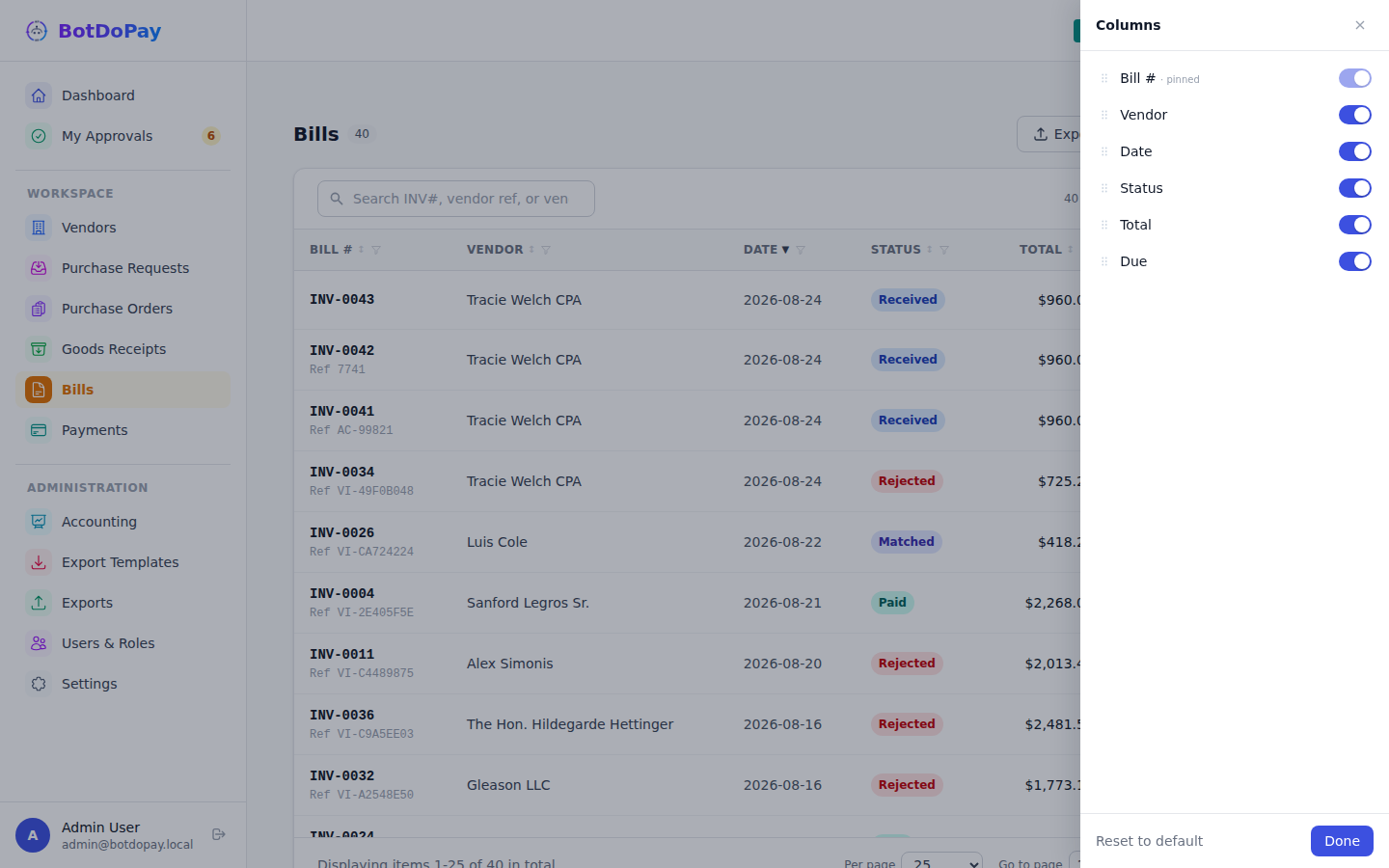
- Click Columns.
- Tick the columns you want and untick the ones you don't.
- Click Done, or Reset to default to go back to the standard set.
Change the row height
Use the row-density button in the toolbar to switch between Comfortable rows and Compact rows. Compact fits more on screen.
On a phone
Lists turn into stacked cards, one per record. The toolbar gives you three buttons — Sort, Filter and Columns — and each one opens a panel from the bottom of the screen. Make your choices and tap Apply filters.
Save a view as a link
The web address updates as you search, sort and filter. Bookmark it, or paste it to a colleague, and it opens with exactly the same view.
Troubleshooting & Help
- "No rows match." Your search or filters are too narrow. Click Clear all filters on that message to start again.
- A row you expected is missing. Check the chips above the list — an old filter may still be applied. Also check whether the record was removed; see Removed records.
- A column heading won't sort. A few columns aren't sortable. Try sorting by a related column instead.
- You lost a column you added. Click Columns and tick it again, or click Reset to default.