Your team
What it does
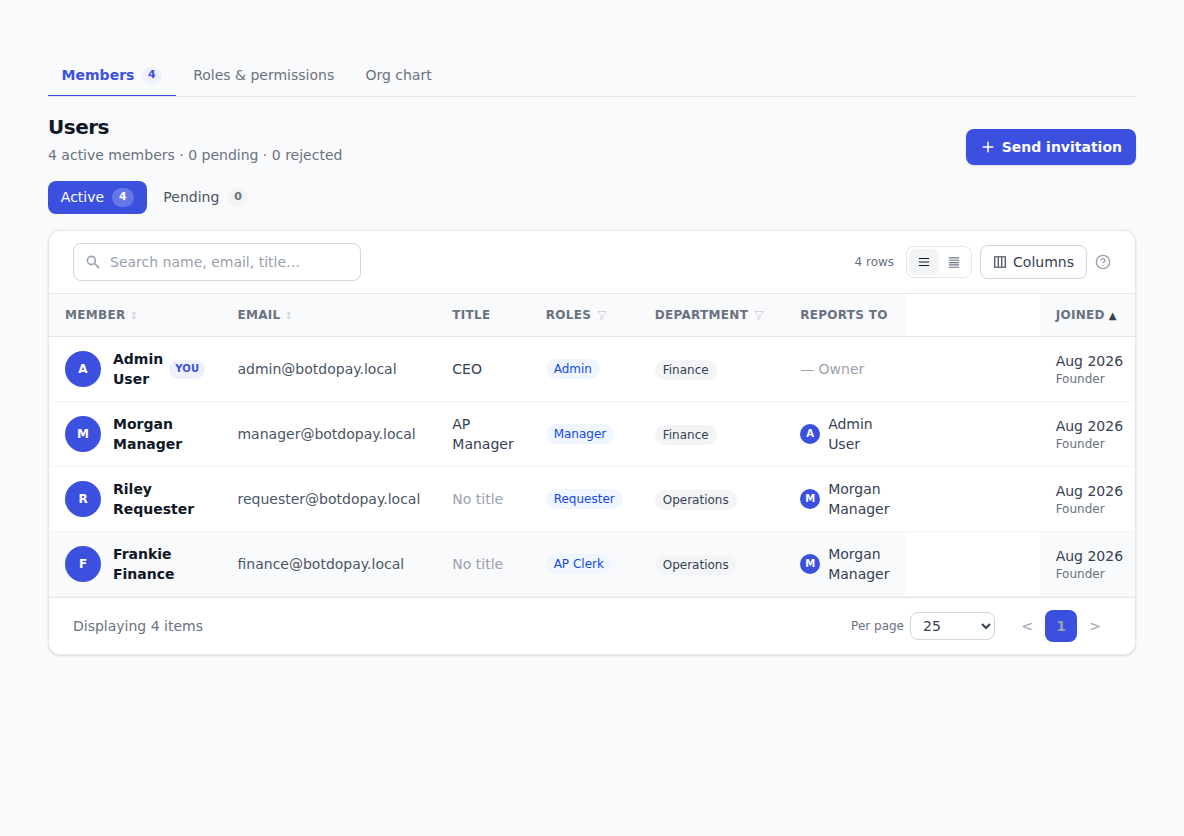
This is where you bring colleagues into BotDoPay, decide what each of them can do, record who reports to whom, and remove people when they leave.
How to use it
Invite someone
- Click Users & Roles in the sidebar.
- Click to send an invitation.
- Fill in Recipient email.
- Tick the roles this person should have. Each role has a short description under its name explaining what it's for.
- Click Send invitation.
They appear under Pending until they accept. They'll get an email with a link; once they fill in their name and a password they join your company.
Approve someone who asked to join
When someone signs up using your company's name, BotDoPay offers them a Request to join button instead of creating a second company. Admins get an email, and the number beside Users & Roles in the sidebar goes up.
- Click Users & Roles, then Pending.
- Find the person's email address.
- Tick the roles this person should have — one is pre-ticked as a starting point.
- Click Approve to send them an invitation, or Reject to turn them down. Rejected requesters get an email letting them know.
Manage a member
- On the Members tab, click Manage member on someone's row. On a computer it's the pencil icon at the end of the row.
- In Manage member, set their Title, their Manager, and their Department.
- Tick or untick roles to change what they can do.
- Click Save member.
The roster then shows their title, department and manager.
Remove someone
- Click Remove on their row.
- If anyone reports to them, the box tells you — for example Casey Clerk manages 1 person — and asks who those people should report to instead. Choose someone.
- Click Reassign + Remove.
See the reporting tree
Click Users & Roles, then the Org chart tab. It draws your company as a tree with each person's title, department and how many people report to them. Click the arrow beside a person to fold their team away, and again to open it.
Set up roles
- Click Users & Roles, then the Roles & permissions tab.
- The list on the left shows your roles. Click one to see what it allows on the right. Built-in roles are marked Locked — you can't change or delete those.
- To make your own, click New, fill in Role name, tick the things that role should be allowed to do, and click Create role.
- To describe a role you made, open it, fill in the Description, and click Save changes. The description shows on the invite form and the roster, so people know what they're picking.
- To delete a role you made, open it, click Delete, and confirm.
Assign a role to someone through Manage member on the Members tab.
See what someone has been doing
Click Activity on a member's row for a timeline of their changes.
Troubleshooting & Help
- The person you invited hasn't turned up. They stay under Pending until they accept. Ask them to check their spam folder.
- "Reporting loop." You've made two people each other's manager, directly or through a chain. Pick a different manager.
- "Choose who…" when removing someone. Someone reports to them. Pick who those people should report to, then click Reassign + Remove.
- You can't change an admin's roles, or remove them. Not everyone can manage an admin's account. Another admin at your company can.
- A colleague says a screen is missing. Their roles decide what they see. Open Manage member and check what they've got.
- A department isn't in the picker. Deactivated departments aren't offered. See Departments and cost centers.