Finding your way around
What it does
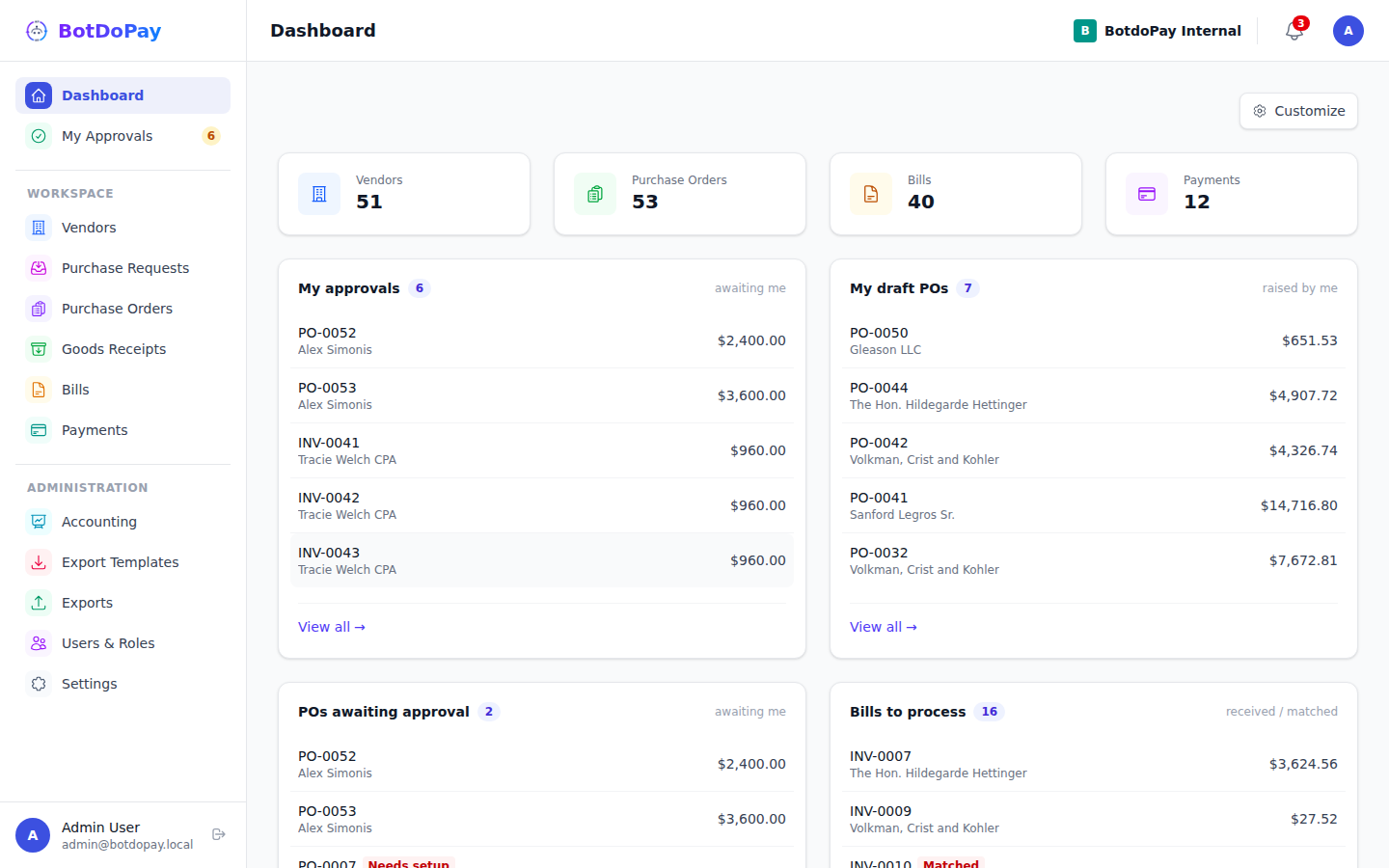
BotDoPay keeps every screen in the same place, so once you learn the layout you can find anything in two clicks. This guide is the map.
How to use it
The sidebar
The sidebar runs down the left of every page. It's grouped into three parts:
- The top — Dashboard and My Approvals. My Approvals carries a number when something is waiting on you.
- Workspace — the day-to-day work: Vendors, Purchase Requests, Purchase Orders, Goods Receipts, Bills, Payments.
- Administration — the setup screens: Accounting, Export Templates, Exports, Users & Roles, Settings.
On a phone the sidebar is hidden until you tap the menu button in the top bar.
You'll only see the entries you're allowed to open, so your sidebar may be shorter than a colleague's. If you think something is missing, ask an admin at your company.
Tabs inside a section
Some sidebar entries hold more than one screen. Click the entry and a strip of tabs appears across the top of the page:
- Vendors → Vendors · Contacts · Vendor Credits
- Accounting → Chart of Accounts · General Journal · Departments · Cost Centers · Catalog Items
- Users & Roles → Members · Roles & permissions · Org chart
- Settings → General · Approval Workflows · Integrations · Funding methods · Payment Terms · Removed records
Several tabs show a small count so you can see how much is in each one at a glance.
The notification bell
The bell in the top bar shows how many unread notifications you have (it stops counting at 9+).
- Click the bell to open the list.
- Click any notification to mark it read and jump straight to the thing it's about.
- Click Mark all read to clear the lot, or View all notifications for the full list.
Press Esc to close the dropdown.
Your account menu
Click your avatar in the top-right corner:
- User Settings — your name, and your profile photo
- Security & Password — change your password
- Notification Preferences — choose what BotDoPay emails you about
- Logout
Switching between the two portals
If you both buy and sell through BotDoPay, your avatar menu also has Switch to AR Portal. That's the green-topped screen where you send invoices to your customers. To come back, click Switch to AP Portal. See The vendor portal.
Troubleshooting & Help
- A sidebar entry you expected isn't there. You only see what your account is allowed to open. Ask an admin at your company to check your access.
- The bell shows a number but the list looks empty. Give it a second — the list loads the first time you open it.
- A notification opens a page that says the record was removed. Someone deleted the thing it pointed at. The notification stays in your list; you can safely ignore it or mark it read.
- You can't find the sidebar on your phone. Tap the menu button at the top-left. Tap outside the sidebar to close it again.