Paying bills
What it does
This is where money actually leaves your account. You pick the approved bills you want to settle, check the summary, and send them. BotDoPay groups the bills by vendor, works out where each payment should go, and tracks each one until it's settled.
How to use it
Pay a batch of bills
- Click Payments in the sidebar, then Pay bills.
- You'll see Select approved bills to pay, listing everything that's approved and unpaid, with the vendor, the amount, and where the money would go under Destination.
- Narrow the list if you like — filter by vendor, or by Destination account type such as Bank account.
- Tick the bills you want to pay, or use Select all to take everything currently listed. The running total and Selected: n update as you go.
- Choose which of your own accounts the money comes from, and set the pay date under the scheduling box. Dates run on your company's time zone.
- Click Review & confirm payments.
- On Confirm payments, check the summary. It tells you how the bills group up — for example 2 bills → 2 payments — the release date, and whether approval is needed.
- To send one vendor's money somewhere other than the suggested destination, use the change control on that group and pick another.
- Click Confirm & send payments.
What happens next depends on your company's setup. If no approval is needed the payments are scheduled straight away. If approval is needed they're sent for approval first, and go out once an approver signs off.
The money goes out on the Scheduled release date shown on the confirm screen, and each payment then moves to Succeeded. That date is usually the pay date you picked — but if your pay date lands on a weekend or a bank holiday it moves on to the next working day, so always check the release date before you confirm.
Pay by check
If one of your funding methods is a check account, pick it in the funding-method box on the selection screen. The list then only offers bills BotDoPay can actually mail a check for.
Once the check goes out, the payment shows In the mail with its check number, and an image of the check is attached to the payment. The payment's page tracks it through to delivery.
Record something you paid outside BotDoPay
If you already paid a vendor by wire, or in cash, record it so your books agree with reality.
- Click Payments, then Paid outside.
- On Record an off-platform settlement, tick the approved bills you settled.
- Pick the Method — for example Wire.
- Set Settled on to the day the money actually moved. It starts on today's date.
- Fill in Reference (optional) if you want something to search for later, like wire #88123.
- Click Mark paid outside.
No money moves and no approval is needed — you're just telling BotDoPay what already happened.
Follow a payment
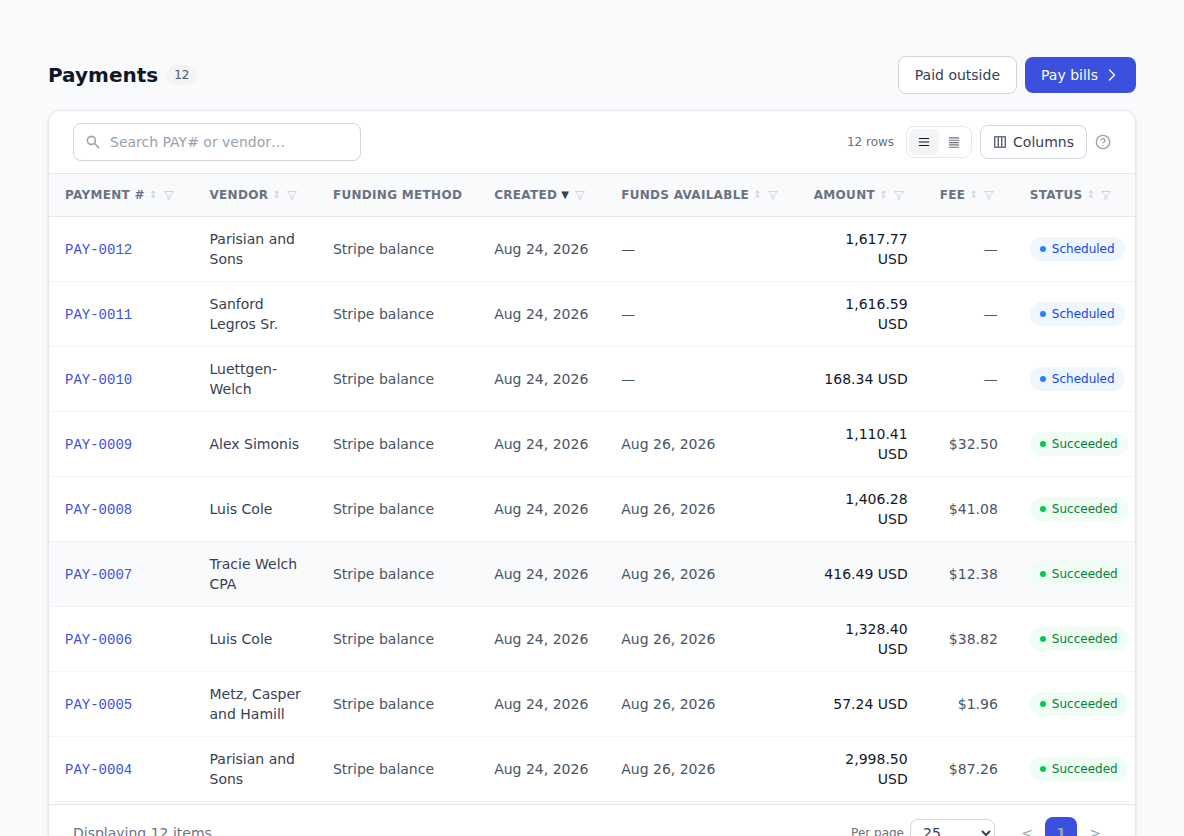
Click Payments in the sidebar and open any payment. Its page shows:
- the amount, currency and total fees
- which funding method it came from and which payment method it went to
- the timing — when it releases, when it settled, and when funds are available
- the bills it paid and the approvals recorded on it
- for checks, the mailing details and the check image
Search, sort and filter the payments list like any other — see Working with lists.
Troubleshooting & Help
- A bill's tick box is greyed out and says "Not onboarded." That vendor hasn't finished setting up how they get paid. Click Not onboarded to go to their page and fill their payout details in. If that page says onboarding is currently unavailable, the details can't be submitted yet — see Funding methods.
- "Review & confirm payments" won't click. You haven't ticked anything yet, or everything you ticked is unavailable. Pick at least one selectable bill.
- "Default unavailable — routing to …" The vendor's usual payment method can't be used right now, so BotDoPay picked another one they've set up. Check the destination on the confirm screen before you send.
- A bill you expect isn't on the list. Only approved, unpaid bills can be paid. Approve it first — see Bills.
- A check-paying vendor is greyed out. Their mailing address isn't complete enough to post a check to. Open the vendor and fix their address.
- A large payment is refused. Above a certain amount a payment has to come from a pre-funded balance, or be sent by check. Pick a different funding method on the selection screen, or split the bills into smaller payments.
- Your payment says "sent for approval." Your company requires approval for payments. It'll go out once an approver signs off — see Approvals.