Goods receipts
What it does
A goods receipt records what actually turned up against a purchase order. It's how you tell the difference between "we ordered 20" and "10 arrived on Tuesday" — which matters when the vendor's bill lands and you need to know what you really owe for.
How to use it
Record a receipt
- Open the purchase order the delivery relates to. Its receiving panel shows what's arrived so far, or Nothing received yet.
- Click Receive items.
- Each ordered line is listed with the quantity still outstanding already filled into the Received box.
- Change the numbers to what actually arrived. Leave a line at zero if none of it came.
- Click Record receipt.
Your receipt is saved as a Draft with a number like GRN-0001, and the purchase order's totals update to show what's been received.
Post a receipt
A draft receipt is still editable. When you're happy with it, open it and click Post, then confirm. Posting makes it final.
Partial deliveries
If only part of an order arrives, record what came and post it. Next time a delivery lands, click Receive items again — the boxes pre-fill with whatever is still outstanding, so you never have to work it out yourself.
Browse all receipts
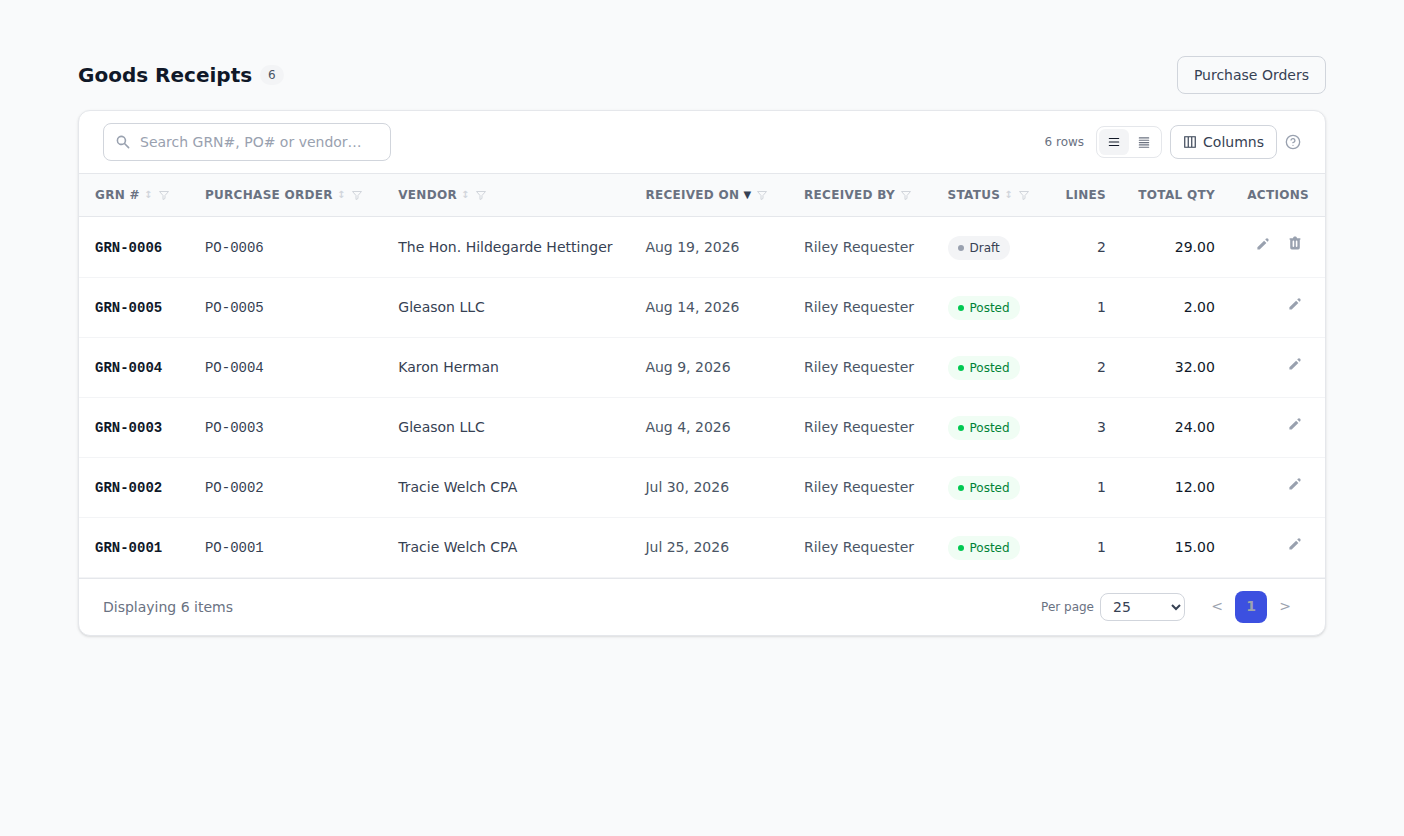
Click Goods Receipts in the sidebar for every receipt across every order, with a count in the sidebar. Click a receipt number to open it. Search, sort and filter as usual — see Working with lists.
Troubleshooting & Help
- You typed the wrong quantity. While the receipt is still a Draft you can open it and fix it. Once it's posted, record a new receipt for the difference.
- The pre-filled quantities look too low. They show what's still outstanding, not the full order — earlier receipts have already been counted.
- You can't find the Receive items link. It's on the purchase order's page. Open the PO from Purchase Orders first.
- Nothing has arrived yet. Don't record a receipt. Wait until the delivery lands.