Vendor credits
What it does
A vendor credit is money a vendor owes back to you — because you returned something, because they over-billed you, or because they agreed a discount after the fact. Recording it keeps your books straight and gives you a record to point at next time you settle up.
How to use it
Record a credit
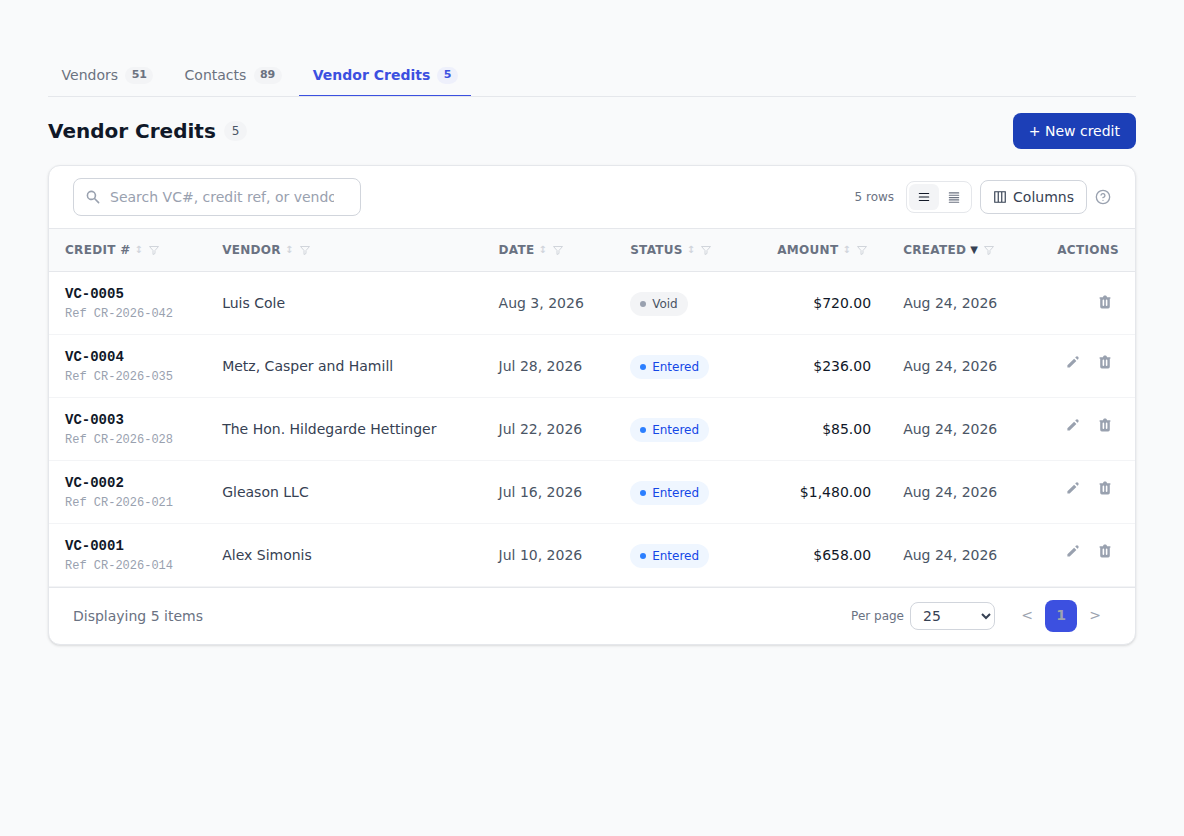
- Click Vendors in the sidebar, then the Vendor Credits tab.
- Click Record credit (on an empty list it reads + Record your first credit).
- In the top section, choose the Vendor, set the Credit date, and pick the Currency. If the credit relates to a particular order, choose it under Purchase order.
- Add the vendor's own reference for the credit memo, so you can match it up later.
- Under Line items, describe what the credit covers — for example "returned 2 units, over-billed on INV-0042". Enter amounts as positive numbers; BotDoPay knows a credit works in your favour.
- Check the Subtotal, Tax and Total at the bottom of the form.
- Click Record credit.
Find a credit later
The Vendor Credits tab lists them all. Search by credit number, the vendor's reference, or the vendor's name. Sort and filter the list the same way as any other — see Working with lists.
Change or attach files to a credit
Open the credit and click Edit to change it, then Save changes. The credit's page also has a documents panel where you can attach the vendor's credit memo or any supporting file.
Troubleshooting & Help
- You typed a negative amount and it looks wrong. Enter amounts as positive numbers.
- The vendor you want isn't in the list. Add them under Vendors first, then come back.
- You can't find a credit you recorded. Clear the filter chips above the list, and try searching by the vendor's name rather than the credit number.