Exports
What it does
An export turns a list on screen into a file you can download — to hand to your accountant, load into another system, or just work on in a spreadsheet. Export templates let you decide, once, exactly which columns come out and in what order.
How to use it
Export a list
- Open the list you want — your bills, for example.
- Search and filter until the screen shows exactly the rows you want. See Working with lists.
- Click Export. A small panel opens with a Template picker, set to Default (current columns).
- Leave the picker alone to export the columns you're looking at, or choose one of your saved templates to use its layout instead.
- Click Export CSV.
- You'll see a note that the export was queued.
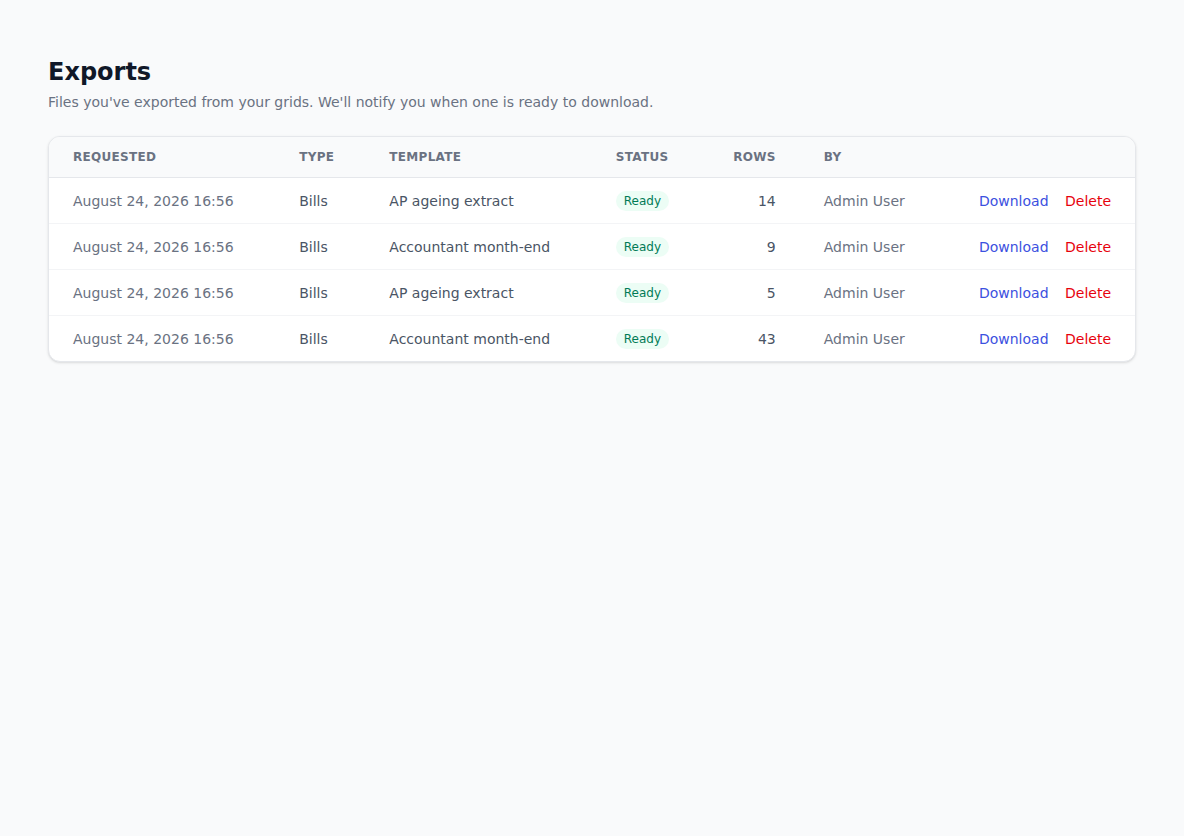
- Click Exports in the sidebar. Your export is listed with its type, template, row count and status.
- When it reads Ready, click Download.
Two things worth knowing:
- The export captures your filters at the moment you click Export CSV, not when the page loaded. Change a filter and export again to get the new set.
- On Default (current columns) it follows the columns you've got showing — hide a column before exporting and it won't be in the file. A saved template uses its own columns instead.
Build an export template
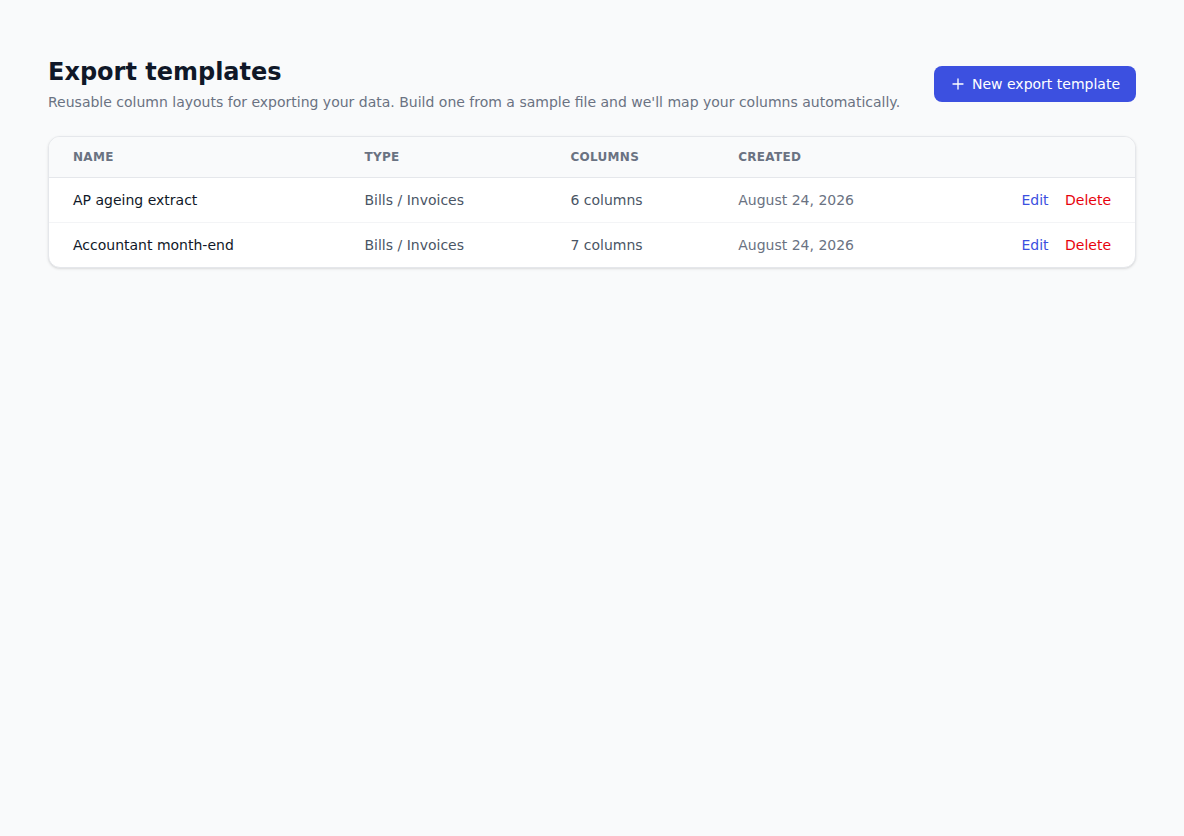
A template is a saved column layout, built by showing BotDoPay a file shaped the way you want your output.
- Click Export Templates in the sidebar.
- Click New export template.
- On Upload a sample CSV or Excel file, choose a file with the headings you want in the output.
- Click Upload & analyze.
- On Review export template, each of your headings is matched to a BotDoPay field. The dropdowns are colour-tinted by how confident the match is.
- Below the mapping, a live preview shows real data flowing into your layout. Change a dropdown and the preview updates straight away, so you can see you've got the right field.
- Fill in Template name — something like QuickBooks bill export.
- Click Save template.
Your template is then offered on the Export menu next time you export that kind of record.
Tidy up old exports
The Exports list has a Delete button on each row. Deleting an export removes the file — it can't be undone, so download anything you still need first.
Troubleshooting & Help
- The export is stuck on a working status. Big exports take a moment. Refresh the Exports page — the status changes to Ready when the file is done.
- A column you wanted is missing from the file. On Default (current columns) the export follows the columns showing on screen — click Columns, tick the one you want, then export again. If you used a saved template, edit the template instead.
- You got more rows than expected. Your filters were cleared, or you exported before applying them. Filter the list first, then click Export.
- The preview on a template looks wrong. Change the mapping dropdown for that column — the preview updates as you go. Nothing is saved until you click Save template.
- You deleted an export you needed. Deleted exports can't be brought back. Run the export again from the list.