Dashboard
What it does
The dashboard is your home screen. It opens on today's work — the bills, orders and approvals waiting on you — and follows it with a quick read on how much you're spending, what you owe, and where your payments stand.
How to use it
Your work queues
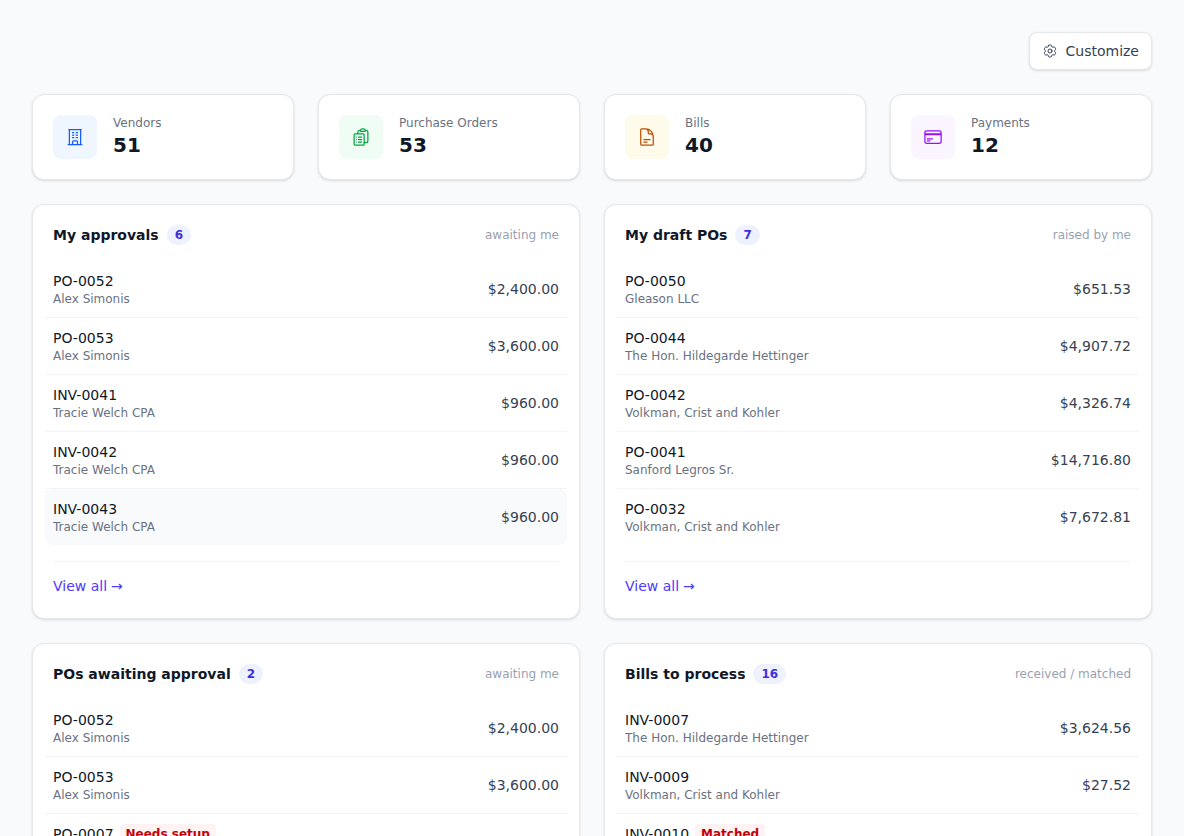
A full-width strip of count tiles — At a glance — sits at the very top of the board. The cards below it are work queues. Each one shows a count, the first few items, and a View all → link to the full screen. Click any row to open that record.
Which queues you get depends on the job you do. You may see:
- My approvals — anything waiting on your decision. Rows open the document itself; you approve from there or from the Approvals screen.
- My draft POs — purchase orders you started and haven't submitted yet.
- POs awaiting approval — purchase orders waiting on your decision. Any order whose approval steps couldn't be worked out is listed underneath with a Needs setup flag; those need an admin to sort out before anyone can approve them.
- Bills to process — new vendor bills that haven't been approved yet. Ones already matched to an order carry a Matched flag.
- Bills awaiting payment — approved bills that still need paying, most urgent first. Anything past its due date carries an Overdue flag.
- Rejected bills — bills that were turned down, newest first.
- Payments needing attention — payments that failed or came back after settling.
- Vendor onboarding incomplete — vendors whose payout details were started but never finished, so you can't pay them yet. Rows open the vendor — see Funding methods.
A queue with nothing in it says so — for example Nothing awaiting you — and still offers View all.
On the approval queues, a very long list shows the count with a + after it — there may be more waiting than the card managed to count. Click View all for the full picture.
Read the charts
At a glance, at the top of the board, holds count tiles for Vendors, Purchase Orders, Bills and Payments — click any tile to open that list. Below the work queues:
- Bills — billed vs paid — how much you've been billed against how much you've paid over time.
- Payments by status — a doughnut splitting your payments into five slices: Succeeded, In progress, Paid outside, Failed and Cancelled. Paid outside is money you settled yourself and recorded by hand — see Paying bills. Failed means the payment didn't go through, or came back after it had settled; the bills it covered reopen so you can pay them another way.
- Bill aging — outstanding bills grouped by how overdue they are.
- Top vendors by spend — who you're spending the most with.
A brand-new company sees a friendly note in each widget instead of a chart — for example No payments yet — until there's something to show.
Rearrange your dashboard
- Click Customize.
- Drag a card to a new spot, or use the up and down arrows on a card. On a phone, use the arrows.
- To take a widget off the board, click the × on its card, or drag it into the panel.
- To put one back, find it under Hidden widgets and click Add, or drag it onto the board.
- Close the panel when you're done — press Esc or click Customize again.
There's no Save button. Every change saves itself and a small Saved note confirms it. Your layout is yours alone; it doesn't change what anyone else sees.
To go back to the standard layout, click Customize, then Reset to default, and confirm.
Troubleshooting & Help
- "Couldn't save — retry." Your change didn't reach the server. Check your internet connection and make the change again.
- A widget isn't in the Hidden widgets list. The panel only offers widgets that suit the work you do, so not everyone can add every card. If you need one that isn't there, ask an admin at your company.
- Dragging doesn't do anything. You have to click Customize first — cards only move while you're customizing.
- A queue says "Too many to summarise here." The card looked, but there was too much in the list for it to confirm whether anything needs you. Click View all to check on the full screen.
- The charts look empty. There's nothing to chart yet. They fill in once you record bills and payments.