The vendor portal
What it does
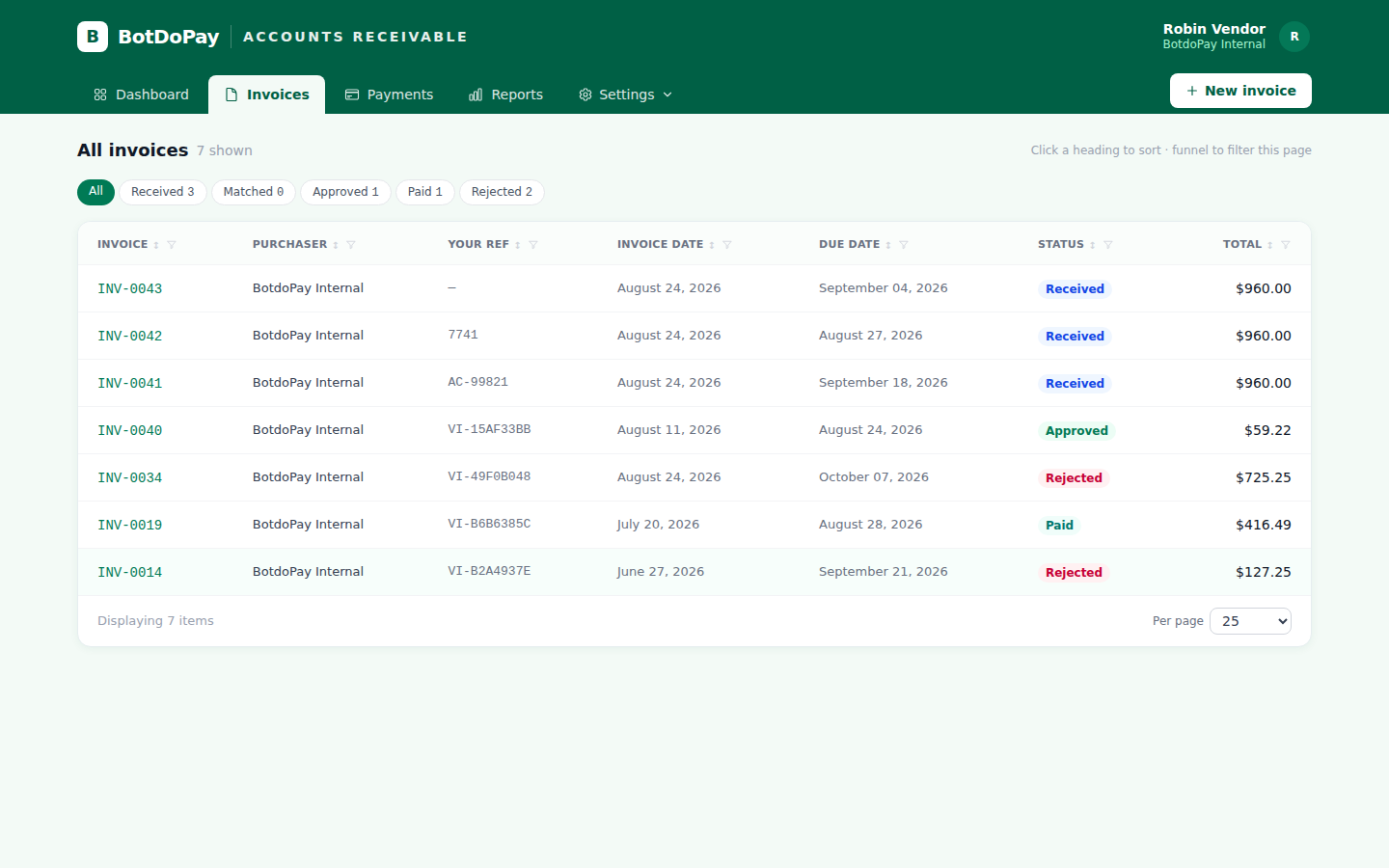
If one of your customers uses BotDoPay, they can invite you to send them invoices directly through it. You get your own green-topped area — the Accounts Receivable portal — where you raise invoices and watch them get paid. No emailing PDFs and hoping.
How to use it
Get an invitation
Your customer sends you an invitation from their side. You'll get an email with a link; open it and set up your sign-in the same way as any other BotDoPay account. See Getting started.
If you're the customer and you want to invite a vendor:
- Open the vendor from Vendors.
- Find the portal-invitation panel and pick the contact from the dropdown.
- Click Send invite. You'll see confirmation that the invitation went out.
The contact needs an email address on their record first — if none of them have one, the panel says Add a contact with an email address and links you to where to add it. See Vendor contacts.
Find your way around the portal
When you sign in you land on a green ACCOUNTS RECEIVABLE masthead that says Welcome back, [your name]. The tabs across the top are Dashboard, Invoices, Payments and Reports. Beside them, Settings opens a menu holding your Company profile, Contacts, Remittance details and Tax & compliance.
Send an invoice
- Click New invoice.
- Fill in Your invoice reference — your own invoice number — and the Due date.
- Fill in each line: what you did, the quantity, and the unit price.
- Click Submit invoice. You'll see Invoice submitted.
Your invoice appears in your customer's bills queue for them to review, approve and pay.
Track your invoices
Click Invoices for everything you've sent. Click a column heading to sort. To find one by your own reference, click the filter control on the Your ref heading and type into the Filter your ref… box that appears. Each invoice carries a status badge so you can see where it's got to.
Your details
- Click Settings at the top for your company profile.
- Click your avatar, then User Settings, to change your own name. Save and it updates in place.
If you both buy and sell
If you use BotDoPay to pay your own suppliers as well, your avatar menu has Switch to AR Portal and Switch to AP Portal. Use them to hop between the two.
Troubleshooting & Help
- Your invoice doesn't show as paid yet. Your customer has to receive, approve and then pay it. The status badge on your invoice shows where it's up to.
- You can't find an invoice. Click the filter control on the Your ref heading and type your own reference into the box. Clear the box to see them all again.
- Some tabs say "Coming soon." Those parts of the portal aren't ready yet. Everything to do with sending invoices works today.
- You never got the invitation. Check your spam folder, and check your customer sent it to the right address. Ask them to send it again.