Approvals
What it does
Approvals are how your company signs off on spending before it happens. My Approvals is your personal inbox of things waiting on you. Approval Workflows is where an admin describes who has to approve what.
How to use it
Deal with what's waiting on you
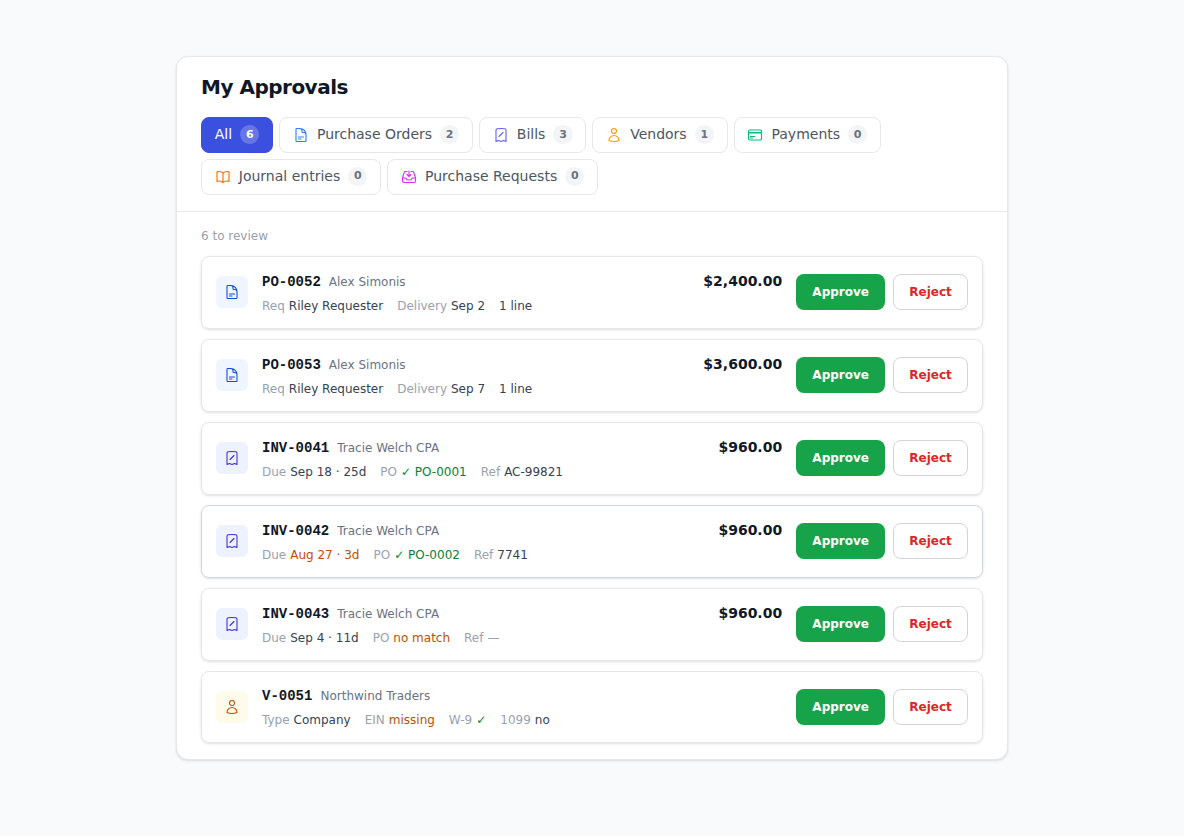
- Click My Approvals in the sidebar. The number beside it is how many things are waiting.
- Each card shows what it is, who raised it, and the amount.
- Use the tabs at the top to narrow the inbox to one kind of thing — Payments, for example. The line above the list tells you what you're looking at, such as 1 payments to review.
- Click Approve or Reject on a card. You'll see Approval recorded.
You can also approve without leaving the record itself. Open a bill, a purchase order or a purchase request and, if it's waiting on you, an approval box sits at the top of the page with the same two buttons.
Once you've decided, the item disappears from your inbox and moves on to whoever's next.
Set up an approval workflow
Describing a workflow is done in plain English — you don't build a flowchart by hand.
- Click Settings in the sidebar, then the Approval Workflows tab.
- Click to add a workflow.
- Fill in Name — something like Standard PO approval.
- In Describe the workflow, write what you want in ordinary words. For example:
- "The requester's manager approves."
- "Either the requester's manager or any admin approves."
- "Manager, then accounting or finance, then the CEO."
- Click Generate workflow.
- Under Review the generated workflow you'll see a diagram of the steps it understood. Steps that offer a choice of approver are drawn as a fork, one box per alternative, labelled Any one.
- If it's right, click Save workflow. If not, reword the description and generate again.
Manage your workflows
The Approval Workflows tab lists your Active workflow and any Inactive workflows, with the document types each one covers. Use:
- Activate to put a workflow into service
- Deactivate to take it out
- Duplicate to copy one as a starting point for another
Reading a workflow's progress
On a record governed by a workflow, the approval panel shows every step. A step you don't need to act on reads Not needed — for example, when a colleague already cleared a step that offered a choice of approvers.
Troubleshooting & Help
- You approved something but the badge didn't change. Some items need more than one approval. It moves on when the last step is done.
- You see Reject but not Approve. You can't approve something you raised yourself. Someone else has to approve it.
- Your inbox is empty but you expected something. Check the tabs at the top — you may be filtered to one kind of item. Also check whether a colleague already handled it.
- The generated workflow isn't what you meant. Reword the description — say who approves and in what order, and use "or" where either person will do — then click Generate workflow again. Nothing is saved until you click Save workflow.
- A rejected item came back to you. Whoever raised it can send it back for another look. Read the banner on the record for what changed.