Getting started
What it does
Getting started covers the very first things you do in BotDoPay: creating an account, confirming your email address, signing in, and joining the right company.
How to use it
Create a new company account
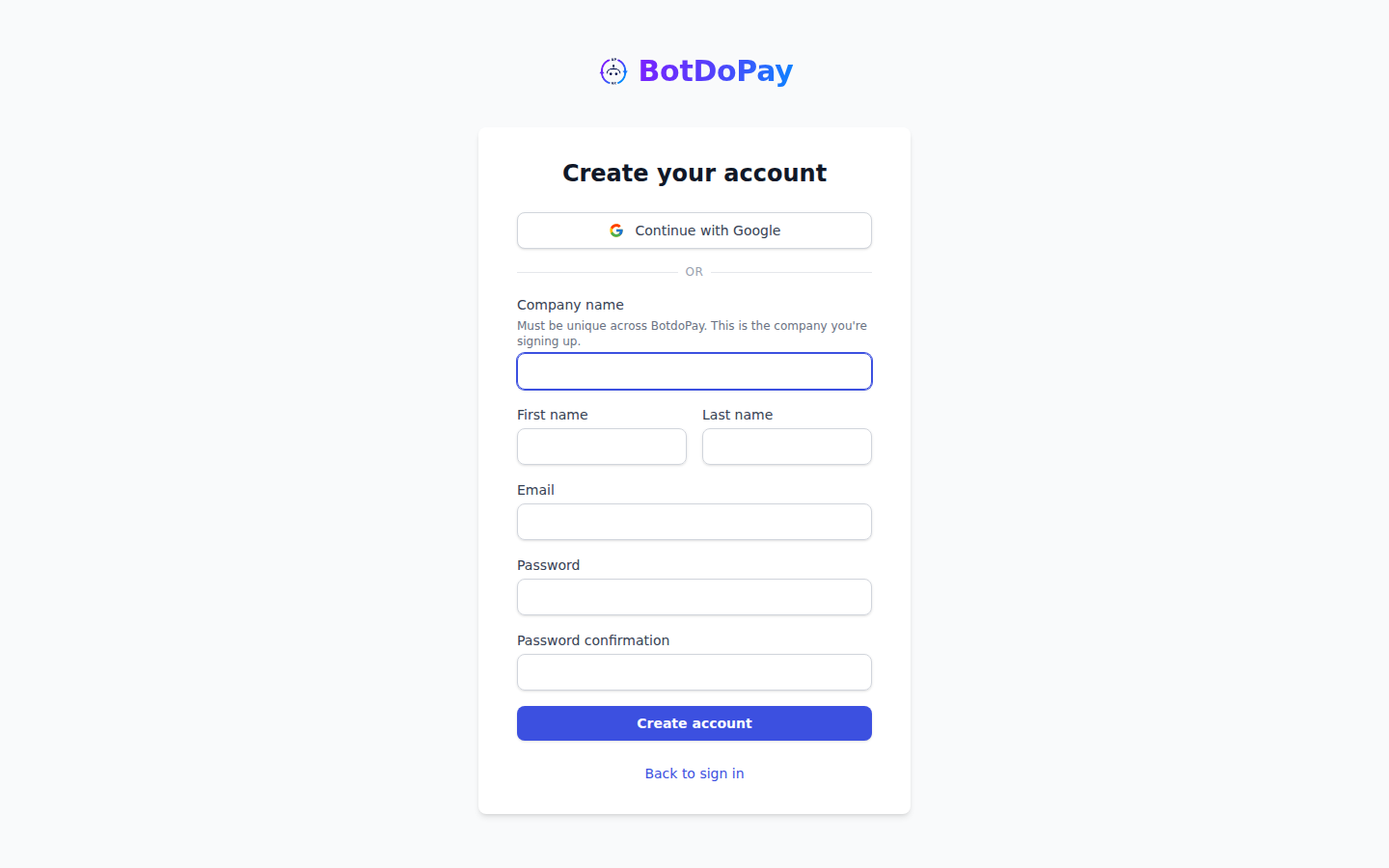
Use this if your company is not on BotDoPay yet and you are the one setting it up.
- Go to the sign-up page.
- Fill in Company name, First name, Last name, Email, Password, and confirm the password.
- Click Create account.
- You'll land on a Check your email page. Open the email BotDoPay just sent you and click the confirmation link.
- The link signs you in and drops you on your dashboard.
You can also click the Google button at the top of the sign-up page instead of typing a password. If BotDoPay hasn't seen you before, it asks "What's your company called?" — type your Company name, click Continue, and you're in.
Join a company that's already on BotDoPay
If someone at your company already set up BotDoPay, don't create a second account for the same company — ask to join the existing one.
- Start on the sign-up page and fill it in as above, using your company's name.
- When you click Create account, BotDoPay tells you the name is already taken and offers a Request to join [your company] button.
- Click it, add a note if you want one, and send the request.
- You'll see Request sent. An admin at your company gets an email.
- When they approve you, you'll get an invitation email. Open it, fill in your name and a password, and click Accept invitation.
Accept an invitation
If an admin invited you directly, you'll get an email with a link.
- Open the email and click the link. The page says You've been invited to [company].
- Fill in First name, Last name, Password, and confirm the password.
- Click Accept invitation. You'll land on the dashboard.
Sign in
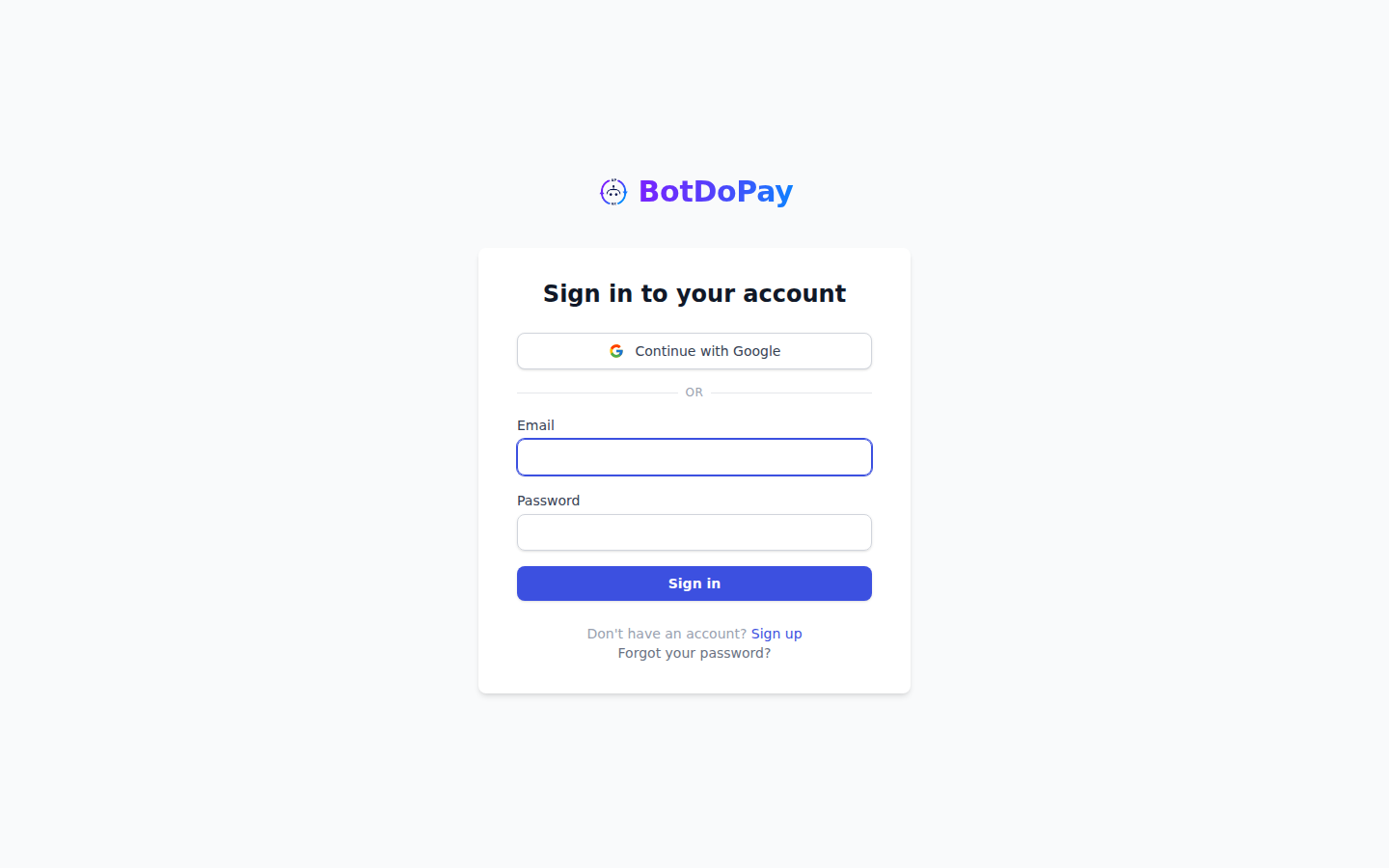
- Go to the sign-in page.
- Enter your Email and Password.
- Click Sign in.
Or click the Google button if that's how you signed up. If you've used both, they work together — signing in with Google takes you to the same account.
Reset a forgotten password
- On the sign-in page, click Forgot your password?
- Type your email address and click Send reset instructions.
- Open the email, click the link, type your New password twice, and click Update password.
Troubleshooting & Help
- "Confirm your email address before signing in." Your account is made but not switched on yet. Click Resend confirmation link on that same screen, then open the new email.
- The confirmation link says "That link didn't work." Confirmation links stop working after a while, and each one can only be used once. Type your email into Your email address on that page and click Send a new link.
- You never got the email. Check your spam or junk folder, and check the address you typed for a typo. Then use Resend confirmation link.
- "Email has already been taken." There's already an account with that address. Try signing in instead, or use Forgot your password? if you don't remember the password.
- "Company name has already been taken." Someone at your company has already set up BotDoPay. Use the Request to join button instead of making a second company.