Departments and cost centers
What it does
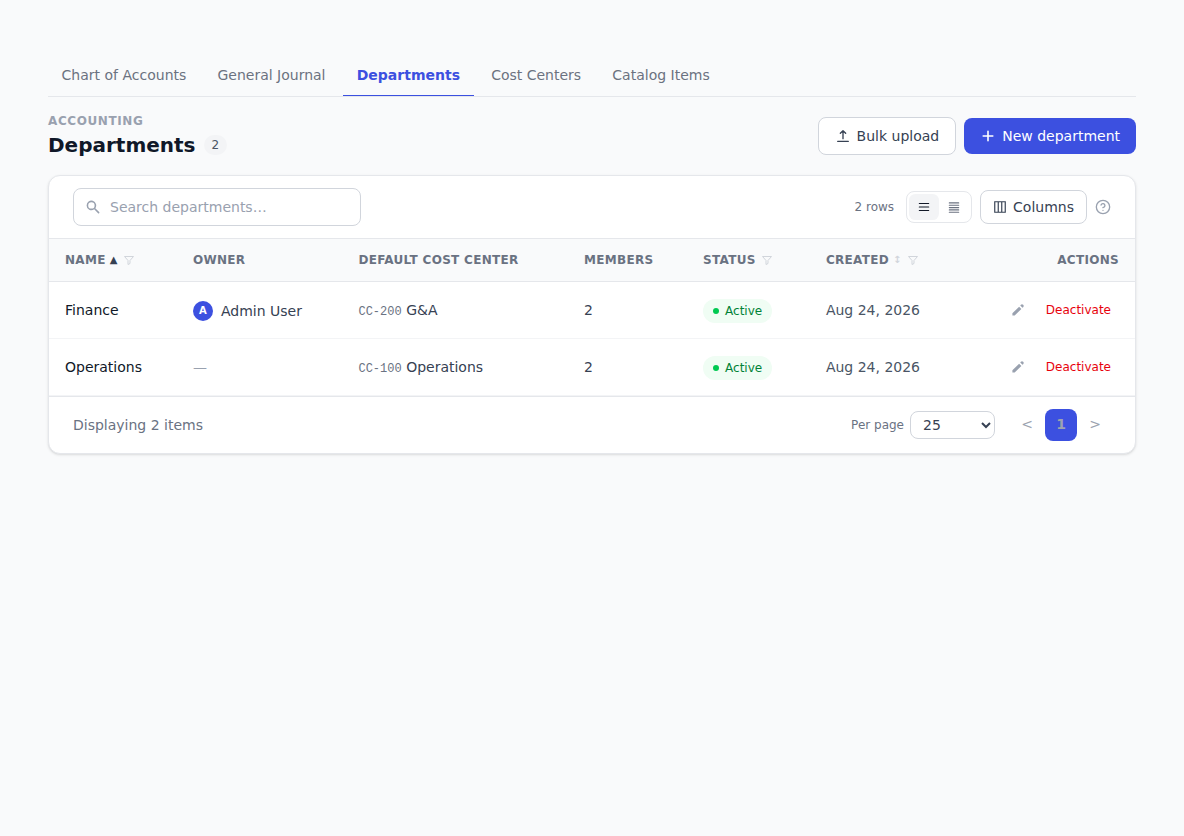
Departments and cost centers are how you split spending by part of the business. A department is a team — Finance, Marketing, Operations. A cost center is a code you tag spending with so you can report on it. Setting them up means you can answer "what did Marketing spend last quarter?" without doing it by hand.
How to use it
Add a department
- Click Accounting in the sidebar, then the Departments tab.
- Click + New department. On an empty list the page says Create your first department with the same link underneath.
- Fill in the Name.
- Pick an Owner — the person who runs it.
- Pick a Default cost center if this department's spending usually lands on one.
- Click Create department.
Add a cost center
- Click Accounting in the sidebar, then the Cost Centers tab.
- Click New cost center.
- Fill in Code — something like
CC-100— and Name, like Operations. - Pick an Owner if there is one, or leave it as No owner.
- Click Create cost center.
Search the list by code or name using the search box.
Edit one
Click Edit on the row or on the record's page, change what you need, and click Save department or Save cost center.
Pause and bring back a department
- Click Deactivate on the department's row and confirm. It flips to Inactive, its members are unassigned, and it stops being offered when you assign someone to a department.
- To find it again, filter the list by Status: Inactive.
- Click Restore on its row to bring it back.
See who changed what
Open a department and scroll to History. It lists every change with who made it and when, newest first.
Add a lot of departments at once
Use the bulk upload on the departments screen to bring in a spreadsheet. See Importing your data.
Troubleshooting & Help
- A department isn't offered when assigning someone. It's probably deactivated. Filter the list by Status: Inactive and click Restore.
- You deactivated a department by mistake. Nothing is lost. Restore it, then reassign its members — see Your team.
- You can't see these tabs. Not everyone has access to the accounting screens. Ask an admin at your company.