Catalog items
What it does
A catalog item is something you buy often, saved once with its name, unit and price. When you're building a purchase order you pick it from the catalog instead of typing the details again — faster, and everyone describes the same thing the same way.
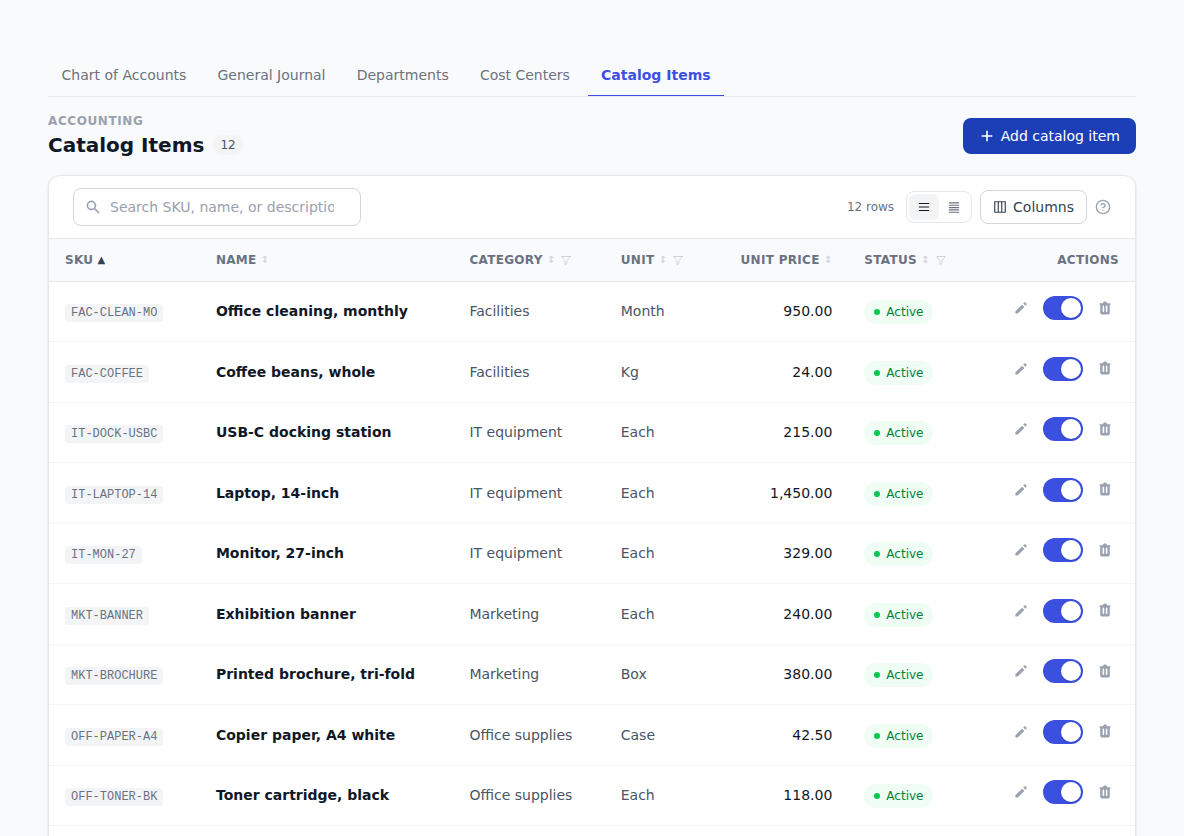
How to use it
Add a catalog item
- Click Accounting in the sidebar, then the Catalog Items tab.
- Click Add catalog item.
- Fill in the Name — for example Blue Widget.
- Pick a Unit of measure, like Box or Each.
- Fill in the Unit price.
- Add a SKU if you use one. Leave it blank and BotDoPay makes one for you.
- Click Create item.
Edit an item
Click Edit on the row, change what you need, and click Save item.
Retire an item
Flip the switch on the item's row to move it between Active and Inactive. Inactive items stop being offered on new documents but stay on everything they're already used on. Flip the switch back to bring one in.
Use the catalog on a purchase order
While you're building a purchase order, search the catalog from the line row and pick the item. Its description, unit and price fill in for you — you can still change any of them on that particular order.
Find an item
Search the list, and filter by status to see only what's active. See Working with lists.
Troubleshooting & Help
- An item isn't offered on a purchase order. It's probably inactive. Open Catalog Items and flip its switch back to Active.
- The price on the order isn't the catalog price. The catalog price is a starting point — whoever built the order can change it on that line. The catalog itself isn't affected.
- You want to change a price everywhere. Editing a catalog item changes what future documents pick up. Documents already saved keep the price they were saved with.