Importing your data
What it does
You don't have to type your history into BotDoPay by hand. You can upload a spreadsheet of vendors, bills, purchase orders, accounts or departments, or upload the bill and order files themselves and let BotDoPay read them.
How to use it
Upload a spreadsheet
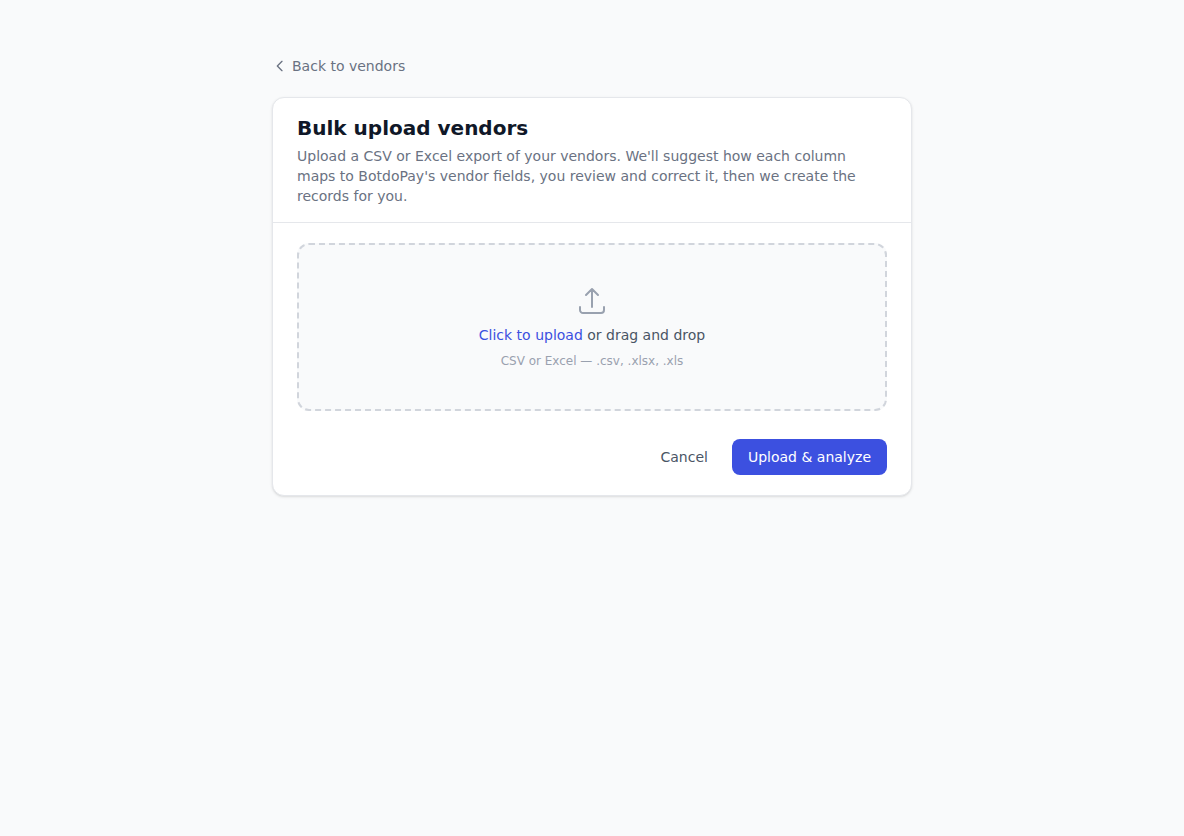
The steps are the same whichever list you're on — vendors, bills, purchase orders, accounts or departments.
- Open the list you want to import into and click Bulk upload.
- Click to choose your file — a CSV or Excel file.
- Click Upload & analyze.
- You'll land on Review column mapping. BotDoPay has read your headings and guessed which of its own fields each column belongs to.
- Check each row of the mapping. The dropdowns are colour-tinted by how confident BotDoPay is about its guess — green where it's sure, amber where it isn't. A key explains the colours.
- Fix anything wrong by picking the right field from the dropdown. For a column you don't want at all, pick Ignore this column.
- The import button stays greyed out until every column is either mapped or ignored. Once you've dealt with them all it lights up and reads something like Approve & import 3 vendors.
- Click it, wait for Import complete, and click Done to see your new records.
Upload bill or order files
If you have the documents themselves as PDFs or images, BotDoPay can read them.
- On the bills list, click Bulk upload bills — or on the purchase orders list, click Bulk upload purchase orders.
- Choose the files. You can pick several at once.
- Click Upload & read.
- When it finishes you'll see Done reading your files with a count, such as 2 bills created, and a list of what was made.
- Anything BotDoPay couldn't place shows under Files that need your attention, with the reason. Deal with those by hand.
The same screen also offers a spreadsheet upload, if that's what you have.
Read a single document
To do just one, use the uploader on the record's own form instead:
- On the new-bill form — Have the bill as a file? → Extract data
- On the new-vendor form — Have one of their invoices? → Extract details
Both accept a PDF or an image (PDF, PNG, JPG or GIF).
Troubleshooting & Help
- The import button stays greyed out. At least one column is still unmapped. Scroll the mapping list and either pick a field for it or choose Ignore this column.
- The mapping guessed wrong. Just change the dropdown — your choice wins over the guess, and the colour updates to show you decided it.
- "Files that need your attention" says a vendor couldn't be matched. The name on the document doesn't match any vendor you have. Add the vendor first — see Vendors — then upload the file again.
- Always check what was read. Reading a document is a shortcut, not a guarantee. Check amounts, dates and references before you approve anything.
- Your file won't upload. Spreadsheet uploads want a CSV or Excel file; document uploads want a PDF, PNG, JPG or GIF. Check the file type and try again.