Company settings
What it does
Company settings is where your company's own details live — its name, logo, address, tax number and website — plus the payment terms you offer vendors and the other systems you connect to.
How to use it
Edit your company details
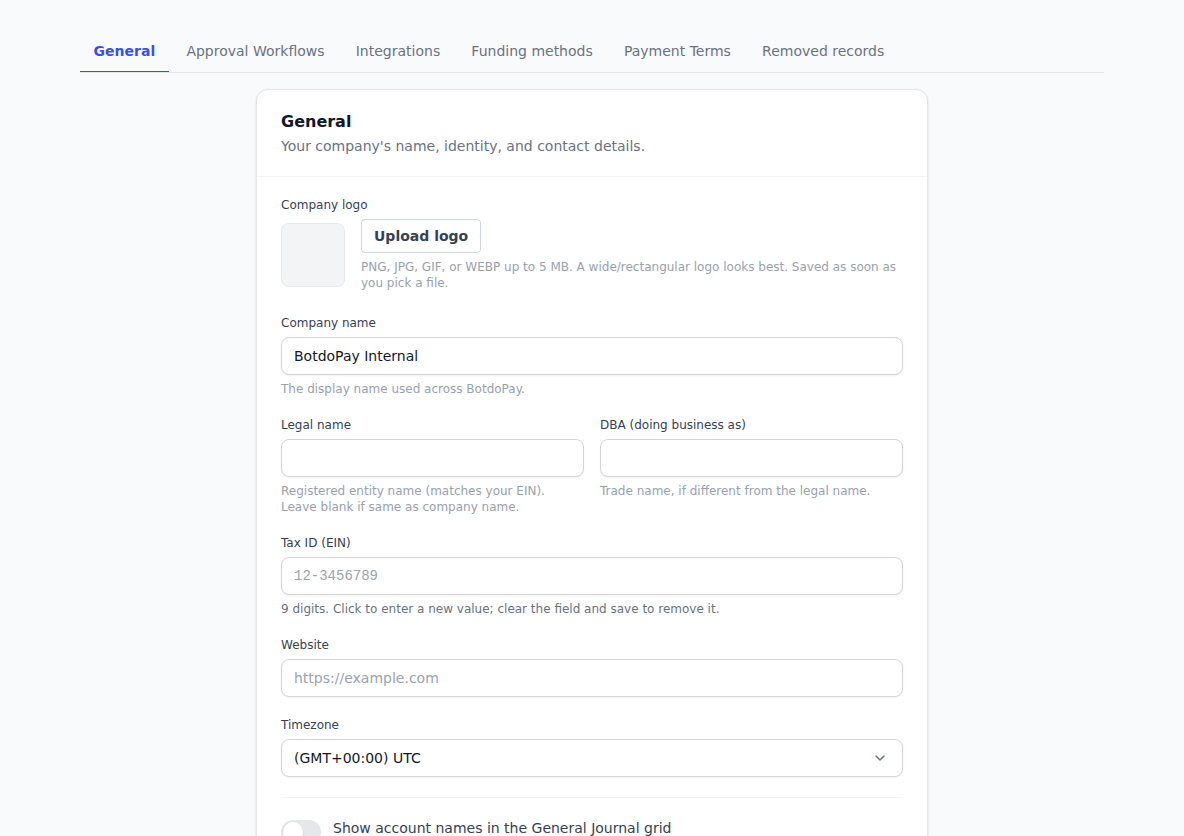
- Click Settings in the sidebar. You land on General.
- Fill in what you need: Company name, Legal name, DBA (doing business as), Tax ID (EIN) and Website.
- Click Save changes.
Your tax number shows as dots with the last four digits visible. Click into the box to clear it and type a new one.
Add your logo
Click the logo area and choose an image. It uploads as soon as you pick it — you don't need to click Save changes. To take it off, click Remove logo and confirm.
Set your business address
- On the General tab, find the business address card.
- Click Add address (or Edit address if there's one there).
- Fill in Line 1, Line 2, City, Region/State, Postal code and the country.
- Click Save address.
The card updates straight away. Press Esc to close the box without saving.
Set up payment terms
Payment terms are the deals you have with vendors — pay in 30 days, take 2% off if you pay in 10, and so on. Set them up once and pick them on each vendor.
- Click Settings, then the Payment Terms tab.
- Fill in the term's name — like
NET-15— the Net days, the Due method, and any Discount days. - Click Add term.
The list shows how many vendors use each term. Remove takes a term out of use.
Apply terms to a vendor on the vendor's own edit form — see Vendors.
Connect QuickBooks Online
- Click Settings, then the Integrations tab.
- Find the QuickBooks Online card. It reads Not connected to begin with.
- Click Connect and follow the QuickBooks sign-in.
- When you come back the card reads Connected and shows which QuickBooks company you linked to.
Once connected you can set the Default bank account to use, turn Payment sync on, and click Sync now whenever you want to push things across.
To unlink, click Disconnect and confirm. Syncing stops until you reconnect.
The other Settings tabs
- Approval Workflows — who approves what. See Approvals.
- Funding methods — the accounts you pay from. See Funding methods.
- Removed records — things you deleted. See Removed records.
Troubleshooting & Help
- "City can't be blank." The address needs a city. Fill it in and save again.
- Your logo didn't change. It uploads on selection — look for the Logo updated. message. If it didn't appear, try a smaller image file.
- The tax box shows dots. That's your saved number, hidden. Click into it to clear it and type a new one.
- The QuickBooks card says "Reconnect required." The link expired or was revoked on the QuickBooks side. Click Reconnect and sign in again.
- You can't see the General tab. Company settings are limited to admins. Ask an admin at your company.